Work with MCP servers
The MCP Servers LTS Update includes several built-in tools. Additionally, you can create your own capabilities (tools, prompts, and resources) to expose custom features to AI agents through your MCP servers.
MCP server capabilities
The Ibexa DXP MCP server framework (ibexa/mcp) is built on top of the official PHP SDK for MCP (mcp/sdk).
A PHP class that implements MCP server capabilities such as tools, prompts, or resources must:
- implement
Ibexa\Contracts\Mcp\McpCapabilityInterfaceso that it can be scanned for capabilities - use attributes from the
Ibexa\Contracts\Mcp\Attributenamespace to declare capabilities
Tools
The Ibexa\Contracts\Mcp\Attribute\McpTool attribute declares a method as an MCP tool.
It accepts the following optional arguments:
servers- array of server identifiers the tool is assigned to
For more information, see tools configuration.name- tool codename - if not set, the function name is usedtitle- tool title for user interfaces - if not set, thenameis useddescription- tool description, used by AI agents to understand the tool's purposeicons- array ofMcp\Schema\Iconinstances
For more information, see theiconsspecification.outputSchema- associative array describing a JSON object responseannotations-Mcp\Schema\ToolAnnotationsinstance
For more information, see theToolAnnotationsspecification.meta- free-form array for additional metadata
For more information, see the_metaspecification.
The framework automatically builds an inputSchema from the method arguments and their types.
To customize or extend the generated schema, you can:
- add descriptions with DocBlock
@paramtags - use the
Schemaattribute
If an argument is an enum, its possible values are listed in the schema (UntitledSingleSelectEnumSchema).
Prompts
MCP servers can also provide prompt templates to help users interact with AI agents connected to the server.
Methods that return a prompt are marked with the Ibexa\Contracts\Mcp\Attribute\McpPrompt attribute.
It accepts several arguments that describe how the prompt is used:
servers- array of server identifiers exposing this prompt - required for promptsname(optional) - prompt codename - if not set, the method name is usedtitle(optional) - prompt title - if not set,nameis useddescription(optional) - human-readable prompt descriptionicons(optional) - array ofMcp\Schema\Iconinstances
For more information, see theiconsspecification.meta(optional) - rarely used free-form array for additional metadata
For more information, see the_metaspecification.
The framework automatically builds the arguments array from the method arguments and their types.
Prompt method arguments must be strings to comply with the GetPromptRequestParams schema.
To add argument descriptions, use DocBlock @param tags, which are mapped to the description defined by the PromptArgument schema.
Example
To keep the example focused on MCP server configuration and capability creation, it doesn't interact with the Ibexa DXP repository.
Create user account
In this example, the MCP server uses JWT tokens created with a dedicated user account.
In Ibexa DXP's back office, create a user in the Guest accounts user group, with login ibexa-example and password Ibexa-3xample.
Configure MCP server
This example introduces an MCP server named example, with a single tool called greet.
The server:
- is enabled on the default repository
- is available in all SiteAccesses
- is accessible with the path
/mcp/example
For example:http://localhost/mcp/examplehttp://localhost/admin/mcp/example
- uses file storage for both discovery cache and sessions
Storage choice recommendations
Filesystem storage is convenient for the sake of this example and for testing. For production, it is recommended that you use Redis or Valkey to share cache among the cluster and improve performance.
For development, you can set discovery_cache: ~ to avoid clearing the cache after each change.
This example uses the filesystem storage to illustrate that you have to clear the cache pool to refresh the available capabilities, exactly as when deploying into production.
In a new config/packages/mcp.yaml file, define a new MCP server for the default repository and assign it to all SiteAccesses:
1 2 3 4 5 6 7 8 9 10 11 12 13 14 15 16 17 18 19 20 | |
Adapt the allowed_hosts to your case, for example, if you want to use the DDEV .ddev.site domain instead of the equivalent 127.0.0.1 address.
The server is automatically registered as a service with the ID ibexa.mcp.server.default.example:
1 | |
An ibexa.mcp.example route is now available:
1 | |
Create capability class
Create an ExampleCapabilities class that implements McpCapabilityInterface.
The class contains:
- a method marked with an
McpToolattribute that associates it with theexampleserver as thegreettool - a method marked with an
McpPromptattribute that provides a prompt template to users
1 2 3 4 5 6 7 8 9 10 11 12 13 14 15 16 17 18 19 20 21 22 23 24 25 26 27 28 29 30 31 32 33 34 35 36 37 38 39 40 41 42 43 44 45 46 47 48 49 50 51 52 53 54 55 56 57 58 59 60 61 62 63 64 65 66 67 68 69 70 71 72 73 74 75 76 77 78 79 80 81 82 83 84 85 86 87 88 89 90 91 92 93 | |
In this example, the servers attribute parameter associates only this tool with the example server.
Alternatively, you can assign all tools from the class to a server by using the tools parameter in the server configuration.
For more information, see tools configuration.
For the prompt, the servers parameter is required.
Therefore, the example prompt must use it to be associated with the example server.
During development and testing, you may need to clear the cache to ensure that new or modified capabilities are properly re-discovered. In this example, use the following command:
1 | |
Cache clearing
During development, clear caches aggressively. The following commands clear all cache types, regardless of where they are stored:
1 2 | |
Create MCP server list command
To check the MCP server configuration, create a small command that uses the MCP server configuration registry injected through McpServerConfigurationRegistryInterface and autowiring:
1 2 3 4 5 6 7 8 9 10 11 12 13 14 15 16 17 18 19 20 21 22 23 24 25 26 | |
Perform curl test
To test the example MCP server, a sequence of curl commands is used to simulate the communication between an AI client and the MCP server.
- Ask for a JWT token through REST.
- Initialize a connection to the MCP server.
- Validate the MCP Session ID.
- List the available tools.
- Call a tool.
jq, grep, and sed are also used to parse or display outputs.
First, use the shell script to set the Ibexa DXP's base URL, user credentials, and MCP server URL as variables for easier reuse:
1 2 3 4 | |
Before you can communicate with the MCP server, you must first request a JWT token through the REST API:
1 2 3 4 5 6 7 8 9 10 11 12 13 14 15 | |
1 2 3 4 5 6 7 | |
Then, perform initialization to get an MCP session ID:
1 2 3 4 5 6 7 8 9 10 11 12 13 14 15 16 17 18 19 20 21 22 23 24 | |
1 2 3 4 5 6 7 8 9 | |
1 2 3 4 5 6 7 8 9 10 11 12 13 14 15 16 17 18 19 20 21 22 23 24 25 26 | |
Validate the initialization:
1 2 3 4 5 6 7 | |
1 2 3 4 5 | |
Get the list of tools:
1 2 3 4 5 6 7 8 | |
1 2 3 4 5 6 7 8 9 10 11 12 13 14 15 16 17 18 19 20 21 22 23 24 25 26 27 28 29 30 31 32 33 34 35 36 37 38 39 40 41 42 43 44 45 46 47 48 49 50 51 52 53 54 55 56 57 58 59 60 | |
Call the greet tool:
1 2 3 4 5 6 7 8 9 10 11 12 13 14 | |
1 2 3 4 5 6 7 8 9 10 11 12 13 14 15 16 17 18 19 20 | |
Get the list of prompts:
1 2 3 4 5 6 7 8 | |
1 2 3 4 5 6 7 8 9 10 11 12 13 14 15 16 17 18 19 20 21 22 23 24 | |
Get the prompt of the greet method:
1 2 3 4 5 6 7 8 9 10 11 12 13 14 | |
1 2 3 4 5 6 7 8 9 10 11 12 13 14 15 | |
Perform MCP Inspector test
You can test your server with the MCP Inspector.
You can even use the inspector as a DDEV add-on with michtio/ddev-mcp-inspector.
You still need to ask for a JWT token through REST or GraphQL APIs, and use it in the MCP Inspector configuration to connect to the server.
You can use a web interface to obtain the JWT token:
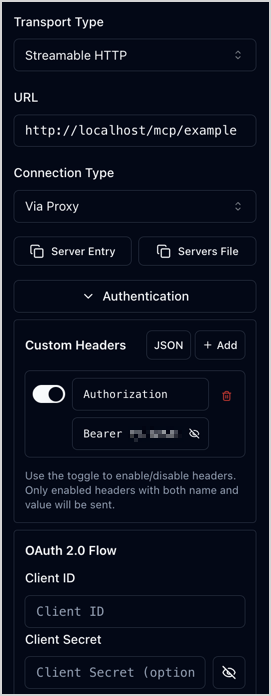
MCP server settings
In this example, the settings needed to use the MCP Inspector are as follows:
- Transport Type: Streamable HTTP
- URL: actual domain and server
path, for examplehttp://localhost/mcp/example - Connection Type: Via Proxy
- Authentication:
- Custom Headers:
- ☑
Authorization Bearer <JWT token>
- ☑
- OAuth 2.0 Flow: left unedited
- Custom Headers:
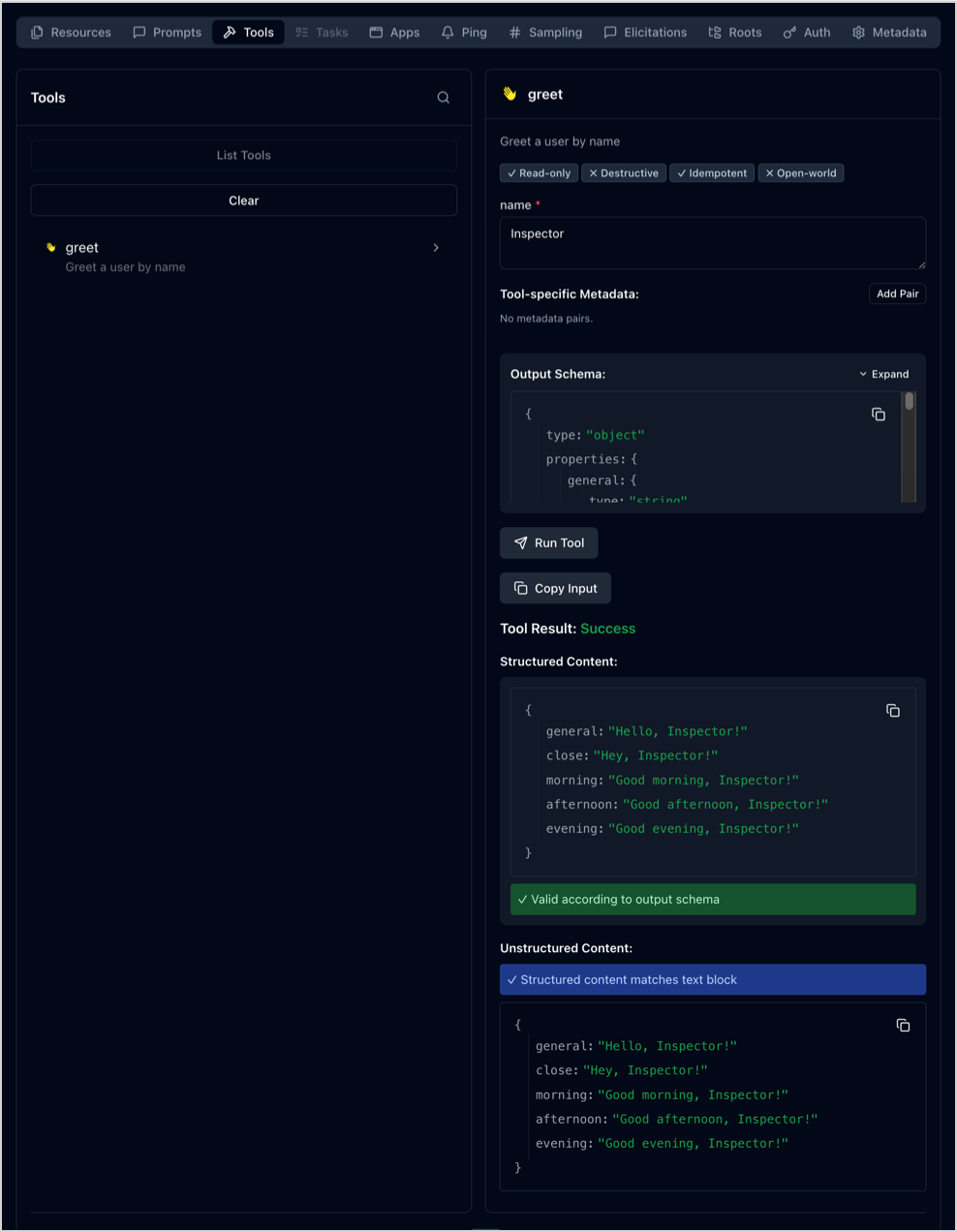
Test MCP server within MCP Inspector
In the right panel, in the Tools tab, click List Tools in the left column.
The greet tool appears, preceded by its icon.
You can select and test it in the right column.
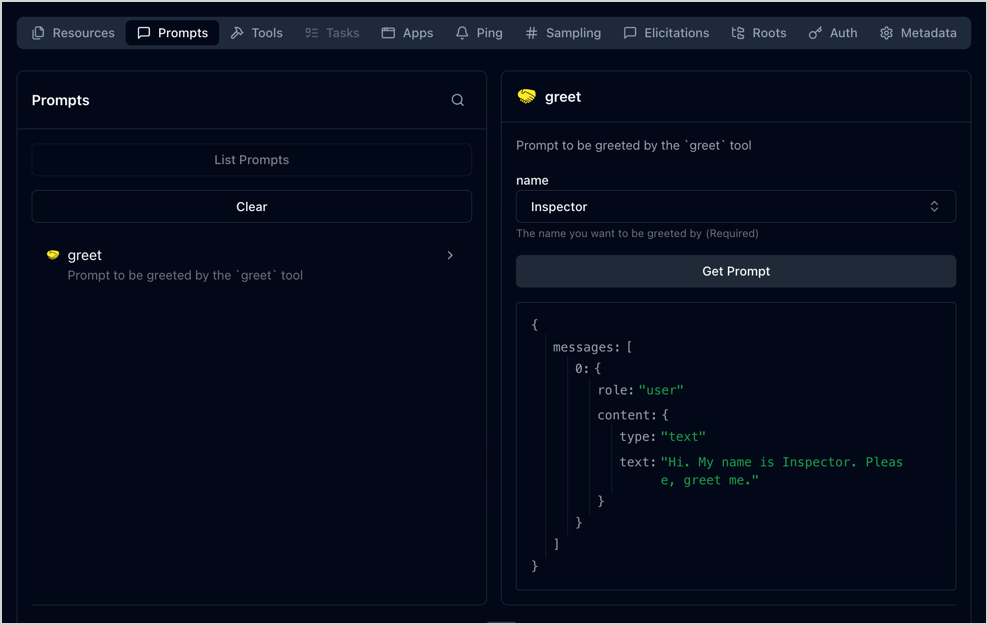
In the Prompts tab, in the left column, click List Prompts.
The greet prompt appears, preceded by its icon.
You can select and test it in the right column.
Perform Copilot or Claude Code test
You can test your MCP server with Copilot CLI or Claude Code CLI, as illustrated here, or with any other agent or interface.
Add MCP server to agent CLI
For the sake of the agent test, in this example, you configure the MCP server in an .mcp.json file at the Ibexa DXP project root.
This way, it is only available for a session opened from there.
You can handle the JWT token for this test in the following ways:
- Hard-code the JWT token into the configuration and update it at every expiration.
- Wrap a JWT token request and an MCP server call into a script.
Hard-coded variant
The hard-coded JWT token configuration in .mcp.json looks as follows:
1 2 3 4 5 6 7 8 9 10 11 12 | |
The .mcp.json file must be edited to update the JWT token each time it expires.
You can request a token by using the GraphiQL web interface or a curl command, and then edit the file manually.
Alternatively, you can configure a shell script to request the JWT token, extract it from the response, and replace it in the file.
When Copilot or Claude Code complains that it can't communicate with the MCP server:
- Update the JWT token in the
.mcp.jsonfile. - Reload the MCP servers in Copilot CLI with one of these methods:
- Run
/mcp reloadcommand to reload all MCP servers. - Run
/mcp disable ibexa-exampleand/mcp enable ibexa-exampleto only reload theibexa-exampleserver.
- Run
Reloading multiple MCP servers
If you have several MCP servers enabled globally, reloading all of them at the same time can be time-consuming. Consider reloading them one by one.
- Update the JWT token in the
.mcp.jsonfile. - Run
/mcp reconnect ibexa-examplecommand to reconnect theibexa-exampleMCP server.
Fully scripted variant
The wrapping script configuration in .mcp.json looks as follows:
1 2 3 4 5 6 7 8 9 10 | |
mcp-ibexa-example-wrapper.sh is a script that requests a JWT token and establishes a connection with the MCP server.
For example, thanks to npx, you can do it with Supergateway without a local installation:
1 2 3 4 5 6 7 8 9 10 11 12 13 14 15 16 17 18 19 20 21 22 | |
When the agent complains that it can't communicate with the MCP server, reload it:
Reload the MCP servers in Copilot CLI with one of these methods:
- Run
/mcp reloadcommand to reload all MCP servers. - Run
/mcp disable ibexa-exampleand/mcp enable ibexa-exampleto only reload theibexa-exampleserver.
Reloading multiple MCP servers
If you have several MCP servers enabled globally, reloading all of them at the same time can be time-consuming. Consider reloading them one by one.
Run /mcp reconnect ibexa-example command to reconnect the ibexa-example MCP server.
Run MCP server test with Copilot CLI or Claude Code CLI
Launch the agent CLI at the project root, where the .mcp.json file is located:
1 2 | |
1 2 | |
If prompted, confirm that you trust the files in this folder. You may choose to have your choice remembered for the future.
You can check the MCP server status and details with the /mcp command:
Run the /mcp show ibexa-example command to check the MCP server status and details:
1 2 3 4 5 6 7 8 9 | |
Run the /mcp command and select ibexa-example to check the MCP server status and details:
1 2 3 4 5 6 7 8 | |
You can prompt the agent to greet you.
It should use the greet tool to do so.
- You can ask it "Please, greet me." and it might respond with a request for your name if it doesn't already know it.
- You can also give it another name to greet, as shown in the prompt template.
During a morning session, the interaction could look like this:
1 2 3 4 5 6 7 8 9 10 11 12 13 14 15 16 17 18 19 20 21 22 23 24 25 26 27 28 29 30 31 32 33 34 35 36 37 38 39 40 | |
1 2 3 4 5 6 7 8 9 10 11 12 13 14 15 16 17 18 19 20 21 22 23 24 25 26 27 28 29 30 31 32 33 34 35 | |
The agent's reflections, reaction times, and final responses, including the improvised emojis, may differ from those examples.
The key point is that the agent decides to use the greet tool, calls it with the right argument, and then uses the call result in its final output.
You can fine-tune the prompt, or remove unnecessary variants if needed.
For example, you could instruct the agent to always use the time-of-day variants, or simply remove the general and close variants.
Removing what's unnecessary is more efficient than extending the instructions.